This Quarter in Venus Control Suite: Small Features, Big Wins
This quarter, we’re highlighting small features that may be easy to overlook but can make a big impact on your day-to-day workflows in Venus Control Suite. Whether you’re designing content, checking display health, or automating schedules, the features below are here to make your day‑to‑day work easier and more efficient.
David Grotzinger on 4/6/2026
Categories: Venus Control Suite Training

Web Editor’s Easy Drop Weather and Quick Troubleshooting
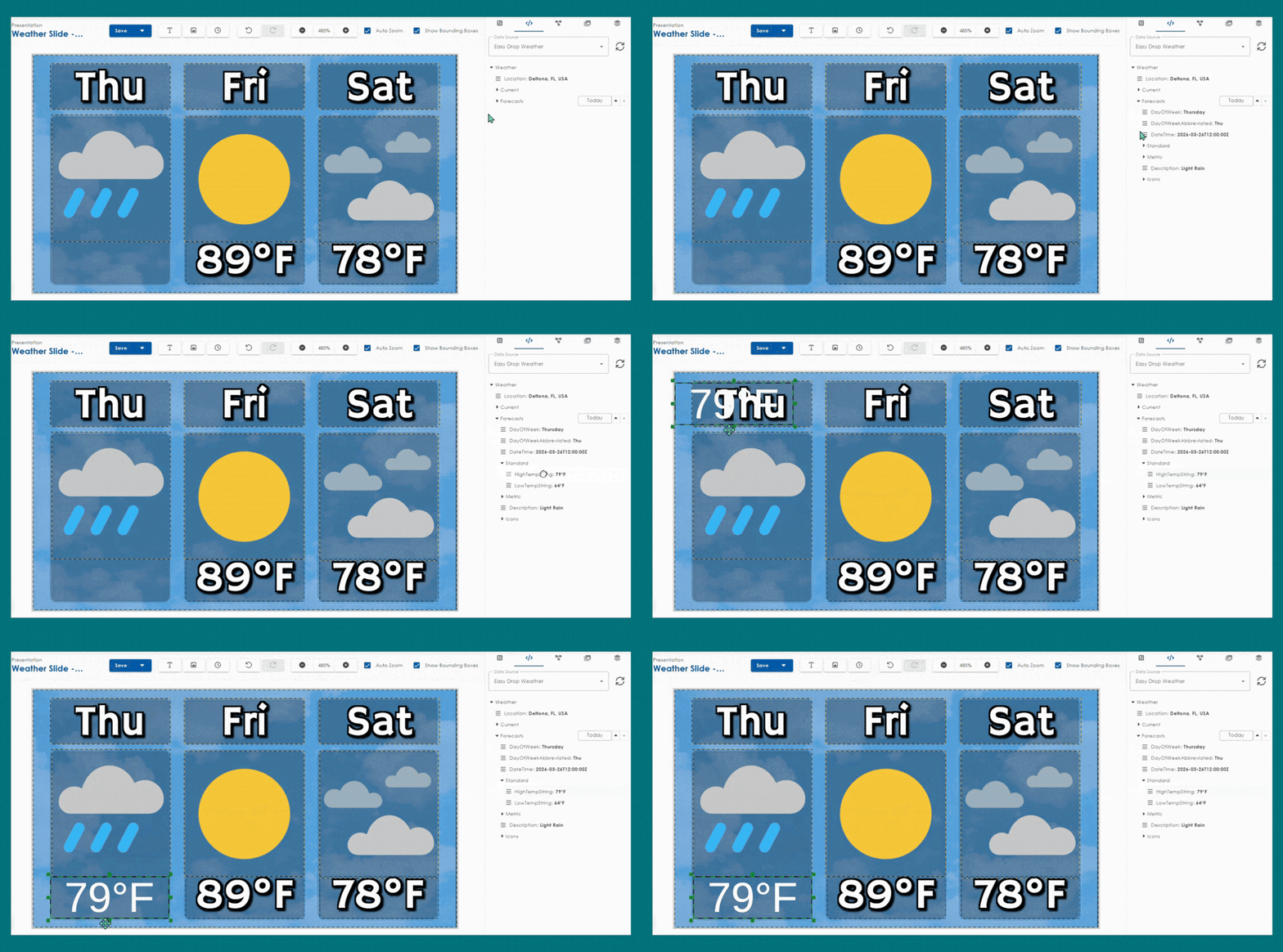
Many users design content in 3rd party tools, which means they often miss out on powerful features built directly into the Web Editor. One of the most overlooked is Easy Drop Weather - a simple way to pull real‑time weather data based on your display location.
It’s useful because Easy Drop Weather automatically pulls current conditions and forecasts using your display location settings. Drag weather data directly onto your canvas to create community‑focused content in seconds.
Quick Troubleshooting (15‑Second Check)
If weather data isn’t appearing, verify:
- The weather feed is turned on in Data Studio
- The display’s location is correct in the Display app
- The content is scheduled in the Scheduling app
Here's some more information on those steps, but if all three look good, you’re good to go!
Don’t Forget to Preview
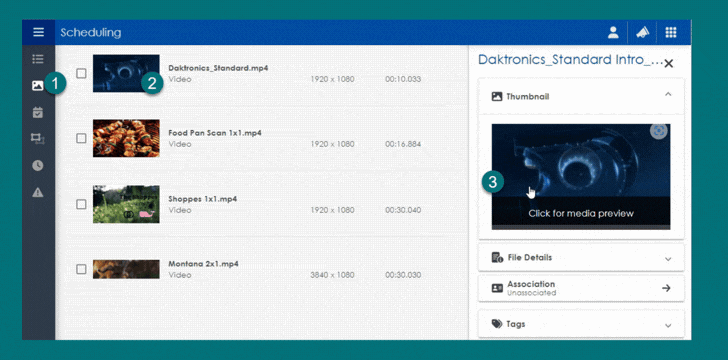
When working with automated content like Easy Drop Weather, Date and Time, or countdowns, it can sometimes be hard to visualize how the final presentation will look. If you’re ever unsure, use the Media Library Preview to confirm that your data is updating correctly and fits your design. For example, if you see an older thumbnail showing placeholder text such as “Temp String” or “10:59pm”, that simply means the presentation uses Easy Drop Weather or other data. Click the media preview for a live look with updated data to make quick adjustments with confidence.
Monitoring: A Fast Way to Check Display Health
Before adjusting content, updating schedules, or troubleshooting your display, start with the Monitoring App. The quick, 15 second check helps ensure your display is connected. If there is no connection, the display won’t receive updates that you made, and any content scheduled for the future could be missed entirely.

Connected
- Recently Played – Shows media thumbnails and file names that were just playing on the display
- Status – Shows the last download completion date and time
- Webcam - *If you installed webcams to remotely view the display
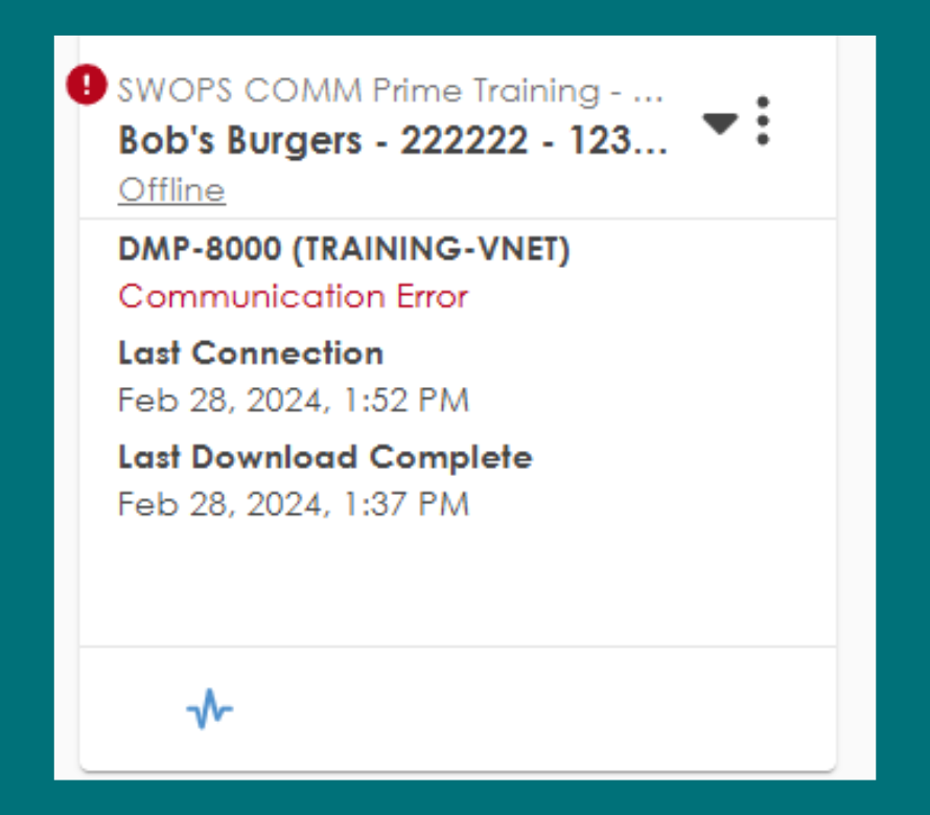
Communication Error
- Red Exclamation Point – Lookout for these! This tells you if the display has a communication error
- Last Connection Date – The date and time the display lost connection
- Last Download Completion Date – The last time the display updated its schedule
A communication error simply means something needs attention, not necessarily that the display is down. If you spot one, MySupport is the fastest way to get help and keep your content running smoothly.
Spend 15 seconds in Monitoring before doing anything else. If your display is healthy, you can move on with confidence knowing your updates will reach the display.
Bring Your Spreadsheets and Calendars to Life with Data Studio
Data Studio allows online Spreadsheets and Calendars to act as data sources for your displays. It’s one of the easiest ways to automate content without manually editing creative files to export and replace. This feature requires Venus Professional or Enterprise packages. If interested, click the button below for our feature breakdown!
How it Works
- Authenticate your Google or Microsoft account using OAUTH
- Connect your spreadsheet or calendar to Data Studio
- Drag cell values or scheduled events in the Web Editor
- Your display updates automatically
- 20-minute refresh rate in Professional
- 1-minute refresh rate in Enterprise
If you track upcoming events for your organization through Google or Outlook Calendar, the majority of the work is already done! Let's put it together for an enticing “Next Event” presentation:
- The calendar is connected to Data Studio using OAUTH
- Set the number of days ahead you want the calendar feed to use. It’s recommended to set this value to account for gaps in your frequency of events.
- Pull calendar data in the Web Editor app
- Summary (event name)
- Description
- Start date and time
- End date and time
- Location
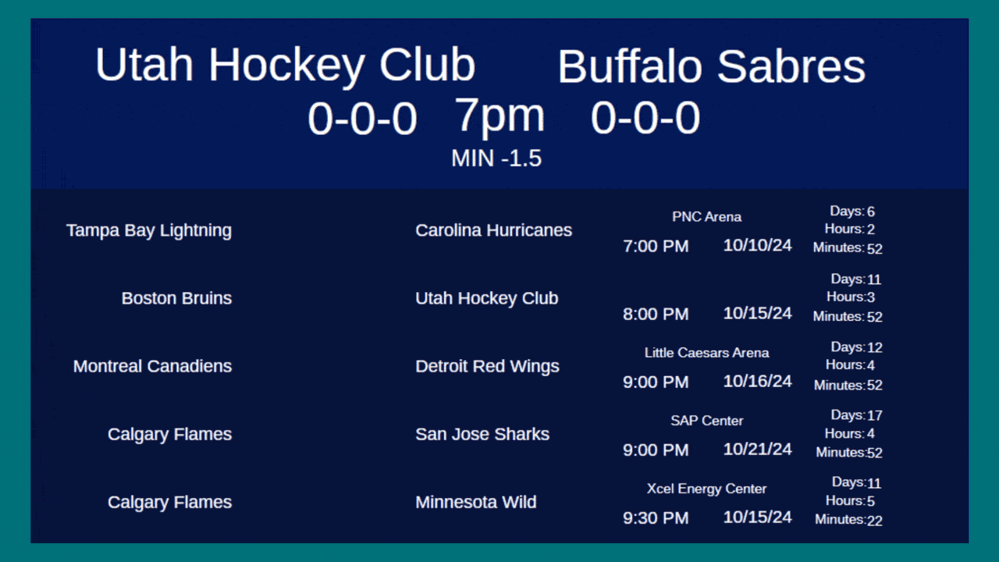
You have full control of what data is displayed and the creative aspects of your presentation! As soon as the event passes or the calendar changes, the display refreshes to show the next upcoming event, ensuring accuracy and encouraging community excitement.
Online calendar feeds are just one way to bring information that might already be managed into your displays. Many organizations rely heavily on Excel or Google Sheets to track daily operations, and those same spreadsheets can become powerful data sources inside Venus Control Suite’s Data Studio.
Speadsheets in the Wild
- Pricing Updates – Maintain product or service pricing
- Sales or Promos – Display daily specials, limited time offers, or rotating promotions
- Menu or Item lists – Update available items, pricing, descriptions, etc.
- Product Availability or Stock Levels – Use this data for conditional scheduling to ensure only products available are displayed
Online spreadsheet data lets teams update information using tools they already know, while your displays stay accurate across every location and screen size.
Wrapping Up
From small workflow improvements to powerful automation tools, Venus Control Suite continues to help you work smarter. Whether you’re designing content, checking display health, or connecting your spreadsheets to your signage, these features make your communication clearer, faster, and more dynamic. Be here for the next quarterly highlights release by subscribing to our blog notifications!