LiveWrx Support
LiveWrx by Daktronics is a fan engagement system that helps schools create interactive, memorable experiences at live events. It turns passive spectators into active participants using the screens already in your gym or arena and the phones already in fans' pockets.
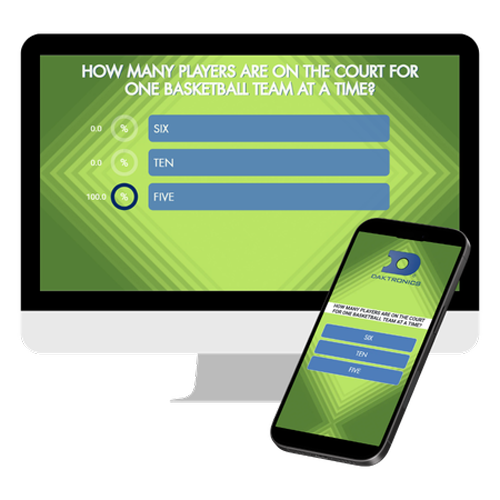
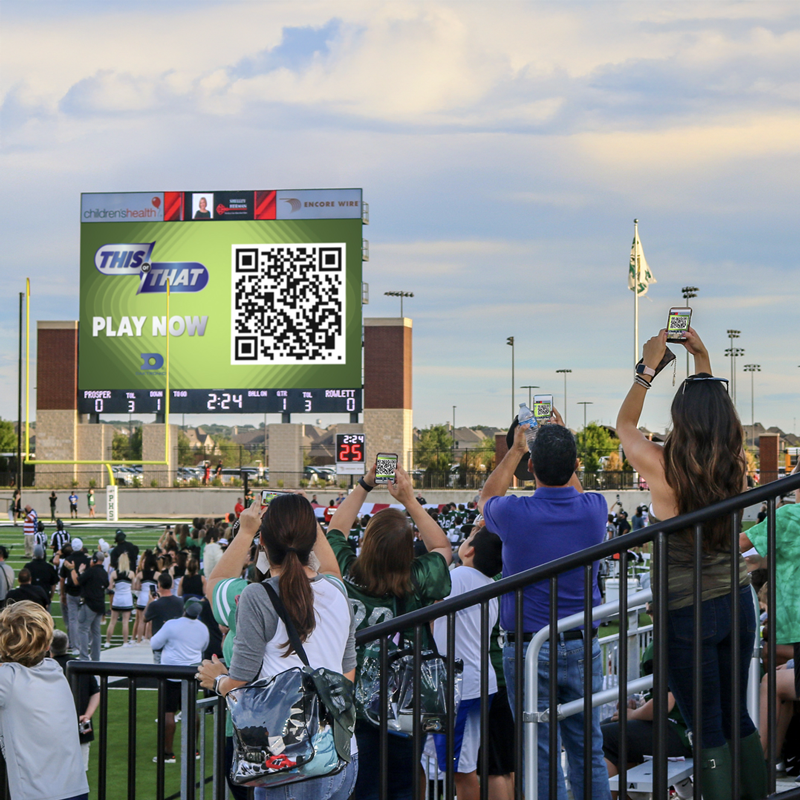
Run simple, fun activations during your events (predictions, polls, and trivia) directly on your video display. Fans participate by scanning a QR code on video displays and signage with their phone. Fans join quickly from the stands with no app download required.
For step-by-step guidance on getting started with LiveWrx, explore our How‑To Articles below.
Prefer to watch and learn? Check out our Full Guide to Getting Started video
How-To Articles
Getting Started & Managing Your Account
Get Started in LiveWrx
After purchase, the contact who placed the LiveWrx order will receive a series of emails with instructions on logging in and inviting the first Admins to the account.
When a new User is created, they will get a time-sensitive welcome email to set up their password.
FrameWrx, DakClassroom, and LiveWrx: Subscription Management
Log In
LiveWrx is a cloud-based platform, so you can access it from any internet-enabled device at livewrx.daktronics.com.
Simply log in using your emails and password to get started.
How-To Articles: Getting Started & Managing Your Account
Creating Brands
Creating Your Brands
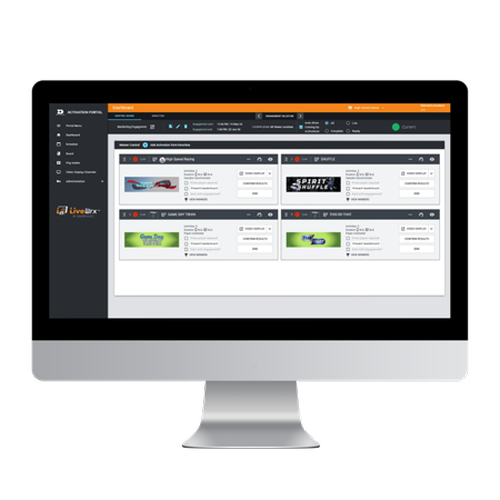
LiveWrx offers a variety of pre-built Activations that you can duplicate and customize to match your brand. Take full control of your experience from the Intro screen to the Game Card. Add your school logo, backgrounds, and sponsor elements to create an Activation that reflects your unique identity.
LiveWrx: How do I create a Brand?
Create Custom Questions
LiveWrx includes two games, Gameday Trivia and This or That, that allow you to engage your fans with trivia or poll questions. You can select from our massive library of pre-created questions, or you can create your own custom questions. These can be a great addition to a holiday-themed game or Senior Night.
LiveWrx: How do I create a custom Gameday Trivia/This or That question?
How-To Articles: Creating Brands
LiveWrx: What are the file specifications when adding images/videos to my Brand?
LiveWrx: How do I update my LiveWrx Brand using FrameWrx Instant Branding?
Building Engagements
Create a New Engagement
Engagements represent your events. They can be configured with multiple games in the form of Activations that can then be operated live during an event. You can create a new Engagement with the Start Engagement Now button, or you can plan future Engagements using the Schedule.
LiveWrx: How do I create an engagement?
Change Activity Outcomes
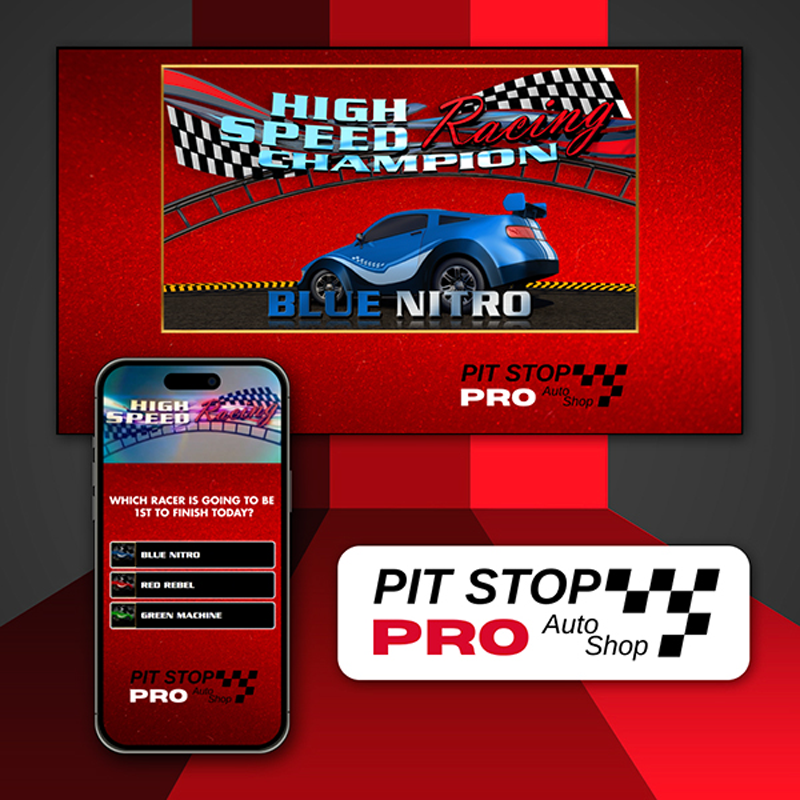
Once your Activations have been added, you can easily adjust your game' activities to personalize the experience. Games like High Speed racing and Spirit Shuffle allow you to adjust race winners or shuffle outcomes, while games like Gameday Trivia and This or That let you change the questions. If you previously created custom questions, you can add them here.


Operating Activations
Display LiveWrx on Your Video Board
LiveWrx is run through a web-based platform that needs to be sent to your video display via Display Studio. LiveWrx can be broadcast to your video display using Display Studio through two methods. You can either use web page playback by saving the link as a URI file or stream LiveWrx through another device directly connected to your Show Control computer using a capture card.
Once LiveWrx is ready on your video display, you can start operating your Activation.
LiveWrx: How do I display LiveWrx on my video board?
Operate Activation
With your Engagement and Activations ready, you’re set to go live. LiveWrx allows you to manually operate your games directly from the platform. Start by assigning your video display channel, then set your status to Live. Once you’re live, invite fans to scan the QR code and begin interacting with your Activation. As they progress through each activity, you’ll bring your event experience to life.
You’re now on your way to delivering an unforgettable fan experience.
LiveWrx: How do I operate an Activation?
How-To Articles: Operating Activations
LiveWrx: What should my PA read when for each LiveWrx Activation?